AI Transparency
MILES marks everything that was created or edited with the help of AI, using the EU’s standardized icon for AI‑generated content.
What does the icon mean?
Section titled “What does the icon mean?”You may have spotted this icon somewhere in MILES: in the corner of an image, beside an audio player, or next to a file attachment.
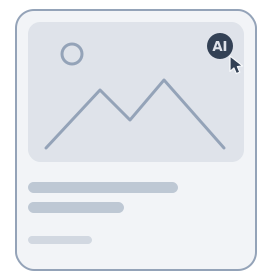
This image was generated or edited with the help of AI
Wherever it appears, it means: this file was created or edited with the help of AI. For example:
- an image, generated by AI from a text description
- a narration, spoken by an AI voice
- a photo, retouched with AI tools
A person still chose the file deliberately; the icon simply makes the AI involvement visible.
Just as important is what the icon does not say:
- It is not a quality verdict. Marked content goes through the same authoring and review as everything else. The icon is transparency, not a warning.
- It does not say how much AI was involved. A fully generated image and a photo retouched with AI tools carry the same icon, on purpose.
- It does not apply to a whole course or group. On their preview images, the icon speaks only about the image itself.
Where else does the icon appear?
Section titled “Where else does the icon appear?”Not everything the icon marks is a file. It appears wherever AI is at work:
- An AI in a conversation. The AI tutor and your partner in a dialog exercise carry the icon on their avatar. Where such a user has a profile picture, the icon sits next to their name instead. It means: messages from this user are written by an AI.
- Automatic translations. MILES can translate contents into other languages with AI. The notice above a translated content carries the icon, as does the language selection that offers the translations.
Here the icon points at the AI involved in what you are reading.
Who sets the icon, and how?
Section titled “Who sets the icon, and how?”The icon can be set by everyone who can edit files, typically authors, group managers, and administrators. The toggle appears wherever a file is managed: in the preview of a fresh upload, in the toolbar of images and audio in the editor, and in exercise image editors.
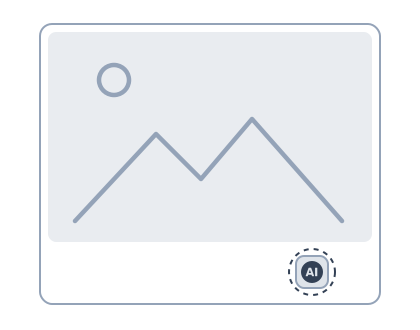
The icon sits on the file itself, not on the place where it is used. Use the same file in several courses and the icon follows it everywhere. Set it once, and every use is covered.
The rule of thumb is deliberately simple: if AI helped create or change the file, set the icon. Don’t try to judge whether the AI part was substantial enough. Case-by-case judgment just leads to inconsistent results.
What should be marked?
Section titled “What should be marked?”- A photorealistic AI image of people, places, or events: mark it. This is the case the law cares most about, content that could be mistaken for real.
- A stylized AI illustration or poster: mark it. The legal duty targets realistic content, but one simple rule beats case-by-case judgment, and the transparency builds trust either way.
- AI-generated or AI-voiced audio: mark it.
- A photo where AI removed or added things: mark it. “Edited” is part of the wording for a reason.
- A photo that was merely cropped, resized, or converted: no icon. Technical processing is not AI involvement.
What does the law require?
Section titled “What does the law require?”Since August 2, 2026, the EU AI Act requires a label on AI-generated content that appears real: images, audio, or video of seemingly real people, objects, places, or events. The label must be clearly perceptible, but the law fixes no wording or symbol. The EU provides standardized icons for it, and MILES uses them. The rules apply to organizations of every kind; purely private use is exempt.
The Act also covers AI-generated text that is published to inform the public without human review or editorial control. Content in MILES normally goes through exactly that control, so this case will rarely apply.
People must also be told when they interact with an AI, unless that is obvious from the situation. In MILES the icon on an AI partner in a conversation does this, and it needs no setting up.
Deciding what must be labelled remains your organization’s responsibility. This page is not legal advice. The primary sources:
- Regulation (EU) 2024/1689, the EU AI Act, transparency obligations in Article 50
- EU icons for labelling AI-generated content
For developers
Section titled “For developers”Uploading files programmatically? You can provide the aiGenerated flag directly with the upload, or set it afterwards via the updateFileReferences mutation. More about uploads in the MILES API section.